Desktop app
Qivuna for Windows.
Your chat list and the open chat side by side, on a big screen, with a real keyboard. Voice and video calls too.
This file is for a Windows computer. Open qivuna.com/download/en on your computer and install it from there.
Download for Windows- Version 1.0.35
- 31 MB
- Windows 10/11, 64-bit
The file is not digitally signed yet, so Windows will show a warning. How to continue
 Android is coming soon.
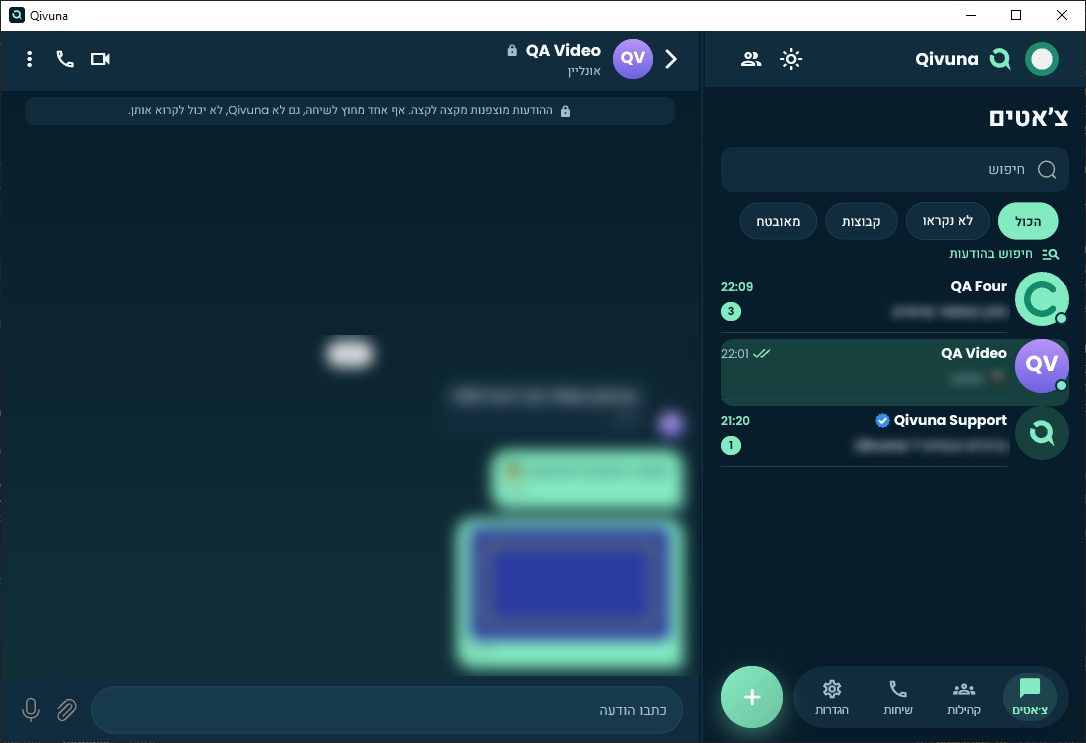
Installing on Windows.
-
Download
Click the button. Qivuna-Setup-1.0.35.exe is saved to your Downloads folder. If the browser asks whether to keep a file that is not commonly downloaded, choose Keep.
-
The Windows warning
Open the file. Because it is not signed yet, a blue SmartScreen window appears: "Windows protected your PC". Click More info, then Run anyway.
To make sure this is exactly the file we published, check the sha256.
Illustration of the SmartScreen window: first "More info", then "Run anyway". -
Install
Two clicks: Install, and a few seconds later Finish. Leave Open Qivuna ticked and the app opens right away. No administrator rights needed: Qivuna installs for your Windows user only, with a Start menu shortcut, and a desktop shortcut if you leave that box ticked.
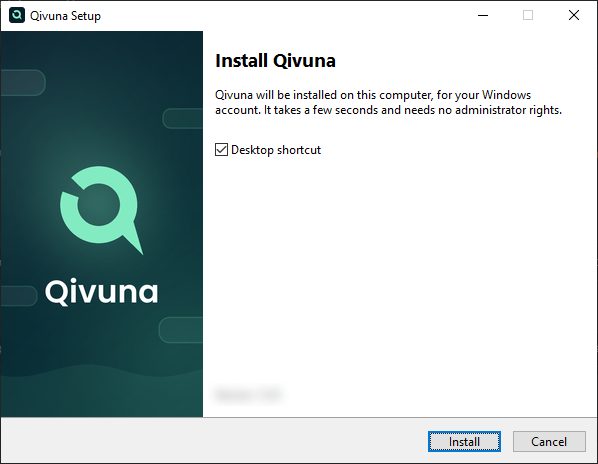
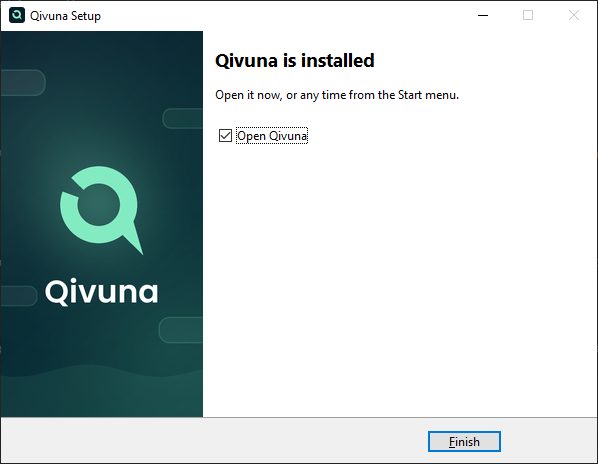
The two installer pages. The screenshot is from an earlier version, so the version number is blurred. The pages themselves have not changed. -
Sign in
Sign in with your phone number or with Qivpass, the same as on the phone.
-
Link your phone
If you already use Qivuna on a phone, the computer shows a QR code. On the phone, open Settings Devices Link another device Scan, and scan it. This moves your encryption key to the computer, so your encrypted messages open there too. You can also use a recovery code.
Without linking, this computer cannot read or send encrypted messages. They show with a lock. You can link it later in Settings Devices. If this is the first device on the account, there is nothing to link.
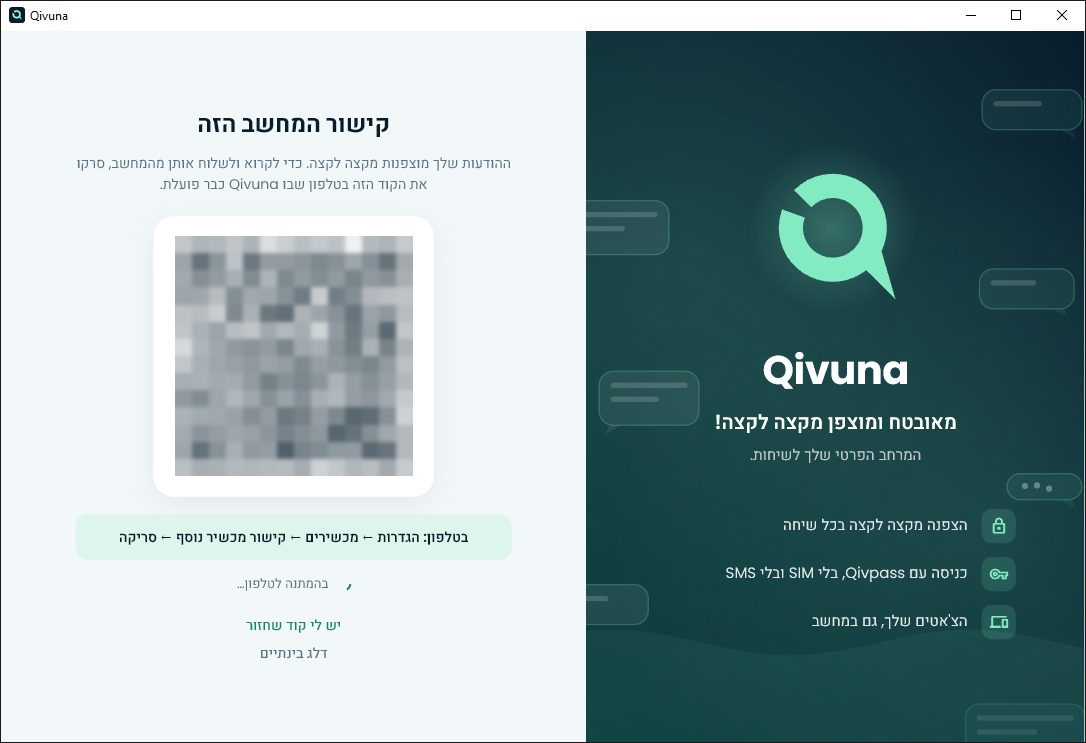
The link step on the computer (shown in Hebrew). The QR code is blurred in this screenshot. -
Your first call
On your first voice or video call, Windows may ask about Windows Defender Firewall. Tick Private networks, leave public networks unticked, and click Allow access.
If you close that window without allowing, the call still connects.
What works on Windows.
On the computer
- Chats, groups and channels
- Photos, videos, files and voice messages
- End-to-end encrypted messages, after linking your phone
- One-to-one voice and video calls. Incoming calls ring even when the app is in the tray, and you can answer or decline from the Windows notification. Pick your microphone, speaker and camera in Settings.
- System tray. Closing the window keeps Qivuna running in the tray, so messages and calls keep coming in.
- Start with Windows. Off by default. Turn it on in Settings Computer.
- App lock with a passcode. The passcode encrypts the encryption keys stored on this computer, and with them the messages saved here. The app locks itself when you lock the computer, or after a while without use.
- Search in a chat with Ctrl+F. Move between results with the arrows or Enter.
- Sign in with Qivpass
- Several accounts in one app
- Dark and light mode. English, Hebrew and Russian.
- Keyboard: Enter sends, Shift+Enter adds a line, Alt+arrows switch chats, Esc closes
Not yet
- Group calls and screen sharing
- Taking photos with the camera inside the app, and QR code scanning
- Contact sync
- Dragging files into the window, and pasting an image with Ctrl+V
- Thumbnails for videos you send, and HEIF image conversion
- Unlocking with Windows Hello. On the computer you unlock with the passcode.
- Ringing for several accounts: only the account open in the app rings.
- After Quit Qivuna in the tray menu, messages and calls stop arriving until you open it again.
- Automatic updates. Download a new version from this page and install it over the old one. Your messages and settings stay.
Verify the file.
The sha256 of the file we published. If yours is different, do not open the file, and write to us.
- File
- Qivuna-Setup-1.0.35.exe
- Version
- 1.0.35
- Size
- 32,979,696 bytes
- Published
- 4 November 2026
- SHA-256
9a525bb393975cceaefc5addada8efde733ccb6c7ff413103a6acb5eb4c32066
In PowerShell:
Get-FileHash "$env:USERPROFILE\Downloads\Qivuna-Setup-1.0.35.exe" -Algorithm SHA256Requirements and more.
- System: Windows 10 or Windows 11, 64-bit.
- Updates: download the new version and install it over the old one. When an update is out, the app sends you to this page.
- Uninstall: in Windows, Settings Apps Qivuna. It asks whether to delete the data on this computer as well.
- Questions: support@qivuna.com